
When someone fills a Lead Ad form on Facebook or Instagram, Facebook keeps that lead inside its own system. Unless someone downloads it, the lead just sits there. By the time a CSV file (a spreadsheet export) reaches your sales team, the person may have already spoken to a competitor.
Connecting Facebook to HemLead fixes this. New leads land in HemLead within seconds, with the campaign and ad they came from, so your team can call while the person is still interested.
What you need before you start
A HemLead account on a plan that includes Meta Integration.
A Facebook account that is an admin of your business's Facebook Page.
At least one Lead Ad form on that Page.
How to connect Facebook Lead Ads, step by step
1
Open Meta Integration
In HemLead's left menu, open Marketing → Meta Integration.
2
Click Connect with Facebook
Click Connect with Facebook. A Facebook window opens. Log in and allow the permissions HemLead asks for. These let HemLead read your lead forms and receive new submissions.
Screenshot: Meta Integration page, Connect with Facebook button
3
Choose your Facebook Page
Pick the Facebook Page your lead ads run on.
Screenshot: Facebook window, choosing the Page your lead ads run on
4
Find your forms
HemLead now lists your Lead Ad forms in the Lead Ad Forms table, on the Forms & Mapping tab.
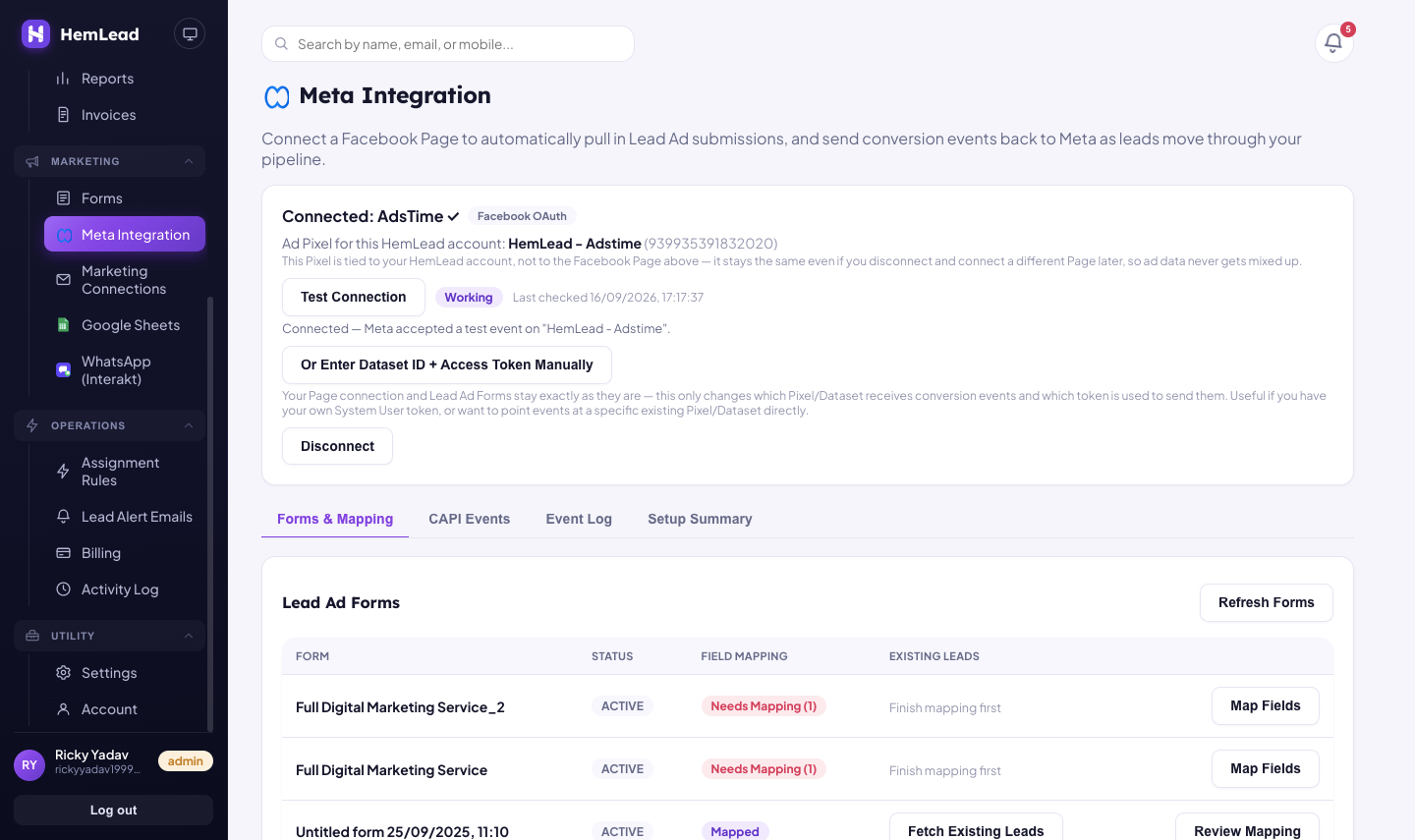
The Meta Integration page after connecting: your forms are listed in the Lead Ad Forms table.
5
Map each form's fields
For each form, click Map Fields. Match every question on the form to a HemLead field, such as Name, Email, Phone or City. HemLead suggests matches for you. A question can also become a new custom field (a field you create for your own business, like "Budget"). When you're done, the form shows Mapped, and the button changes to Review Mapping so you can check or change it later.
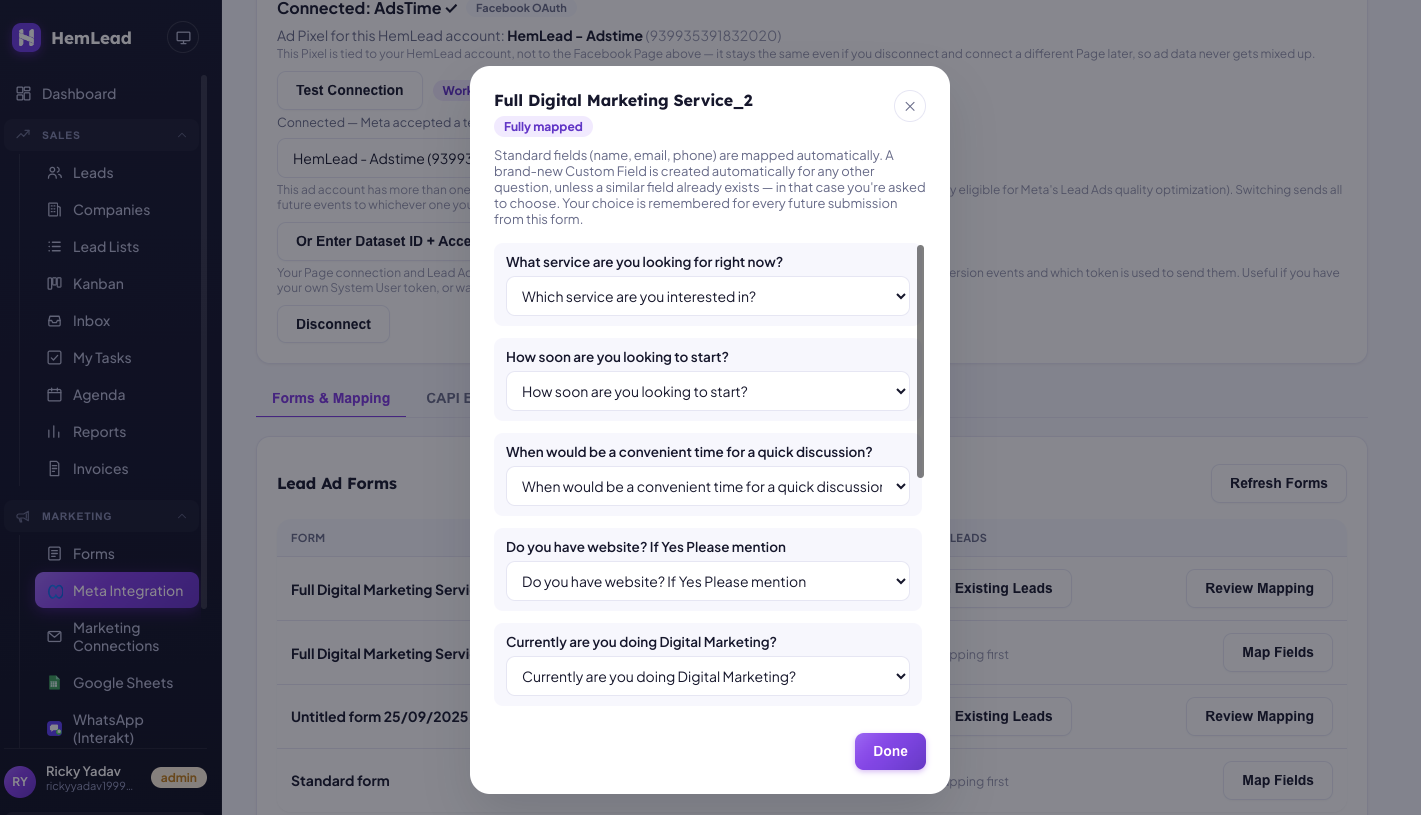
Map Fields: HemLead suggests a match for each question on your form.
6
Watch new leads arrive
From now on, every new submission appears in Leads within seconds. Each lead shows the source Meta Lead Ads, plus the campaign, ad set and ad name it came from.
Screenshot: Leads list with a new lead showing source Meta Lead Ads and its campaign, ad set and ad name
7
Optional: bring in older leads
To import submissions from before you connected, click Fetch Existing Leads on a form. Leads that are already in HemLead are skipped, so nothing is duplicated.
8
Optional: tell Facebook which leads became customers
HemLead sets up a Pixel (Facebook calls it a "Dataset") for you. On the CAPI Events tab, choose which pipeline stage sends which event to Facebook. For example, when a lead reaches "Won", send "Purchase". CAPI (Conversions API) is simply the way HemLead reports these results to Facebook, so Facebook can learn which leads turn into real customers.
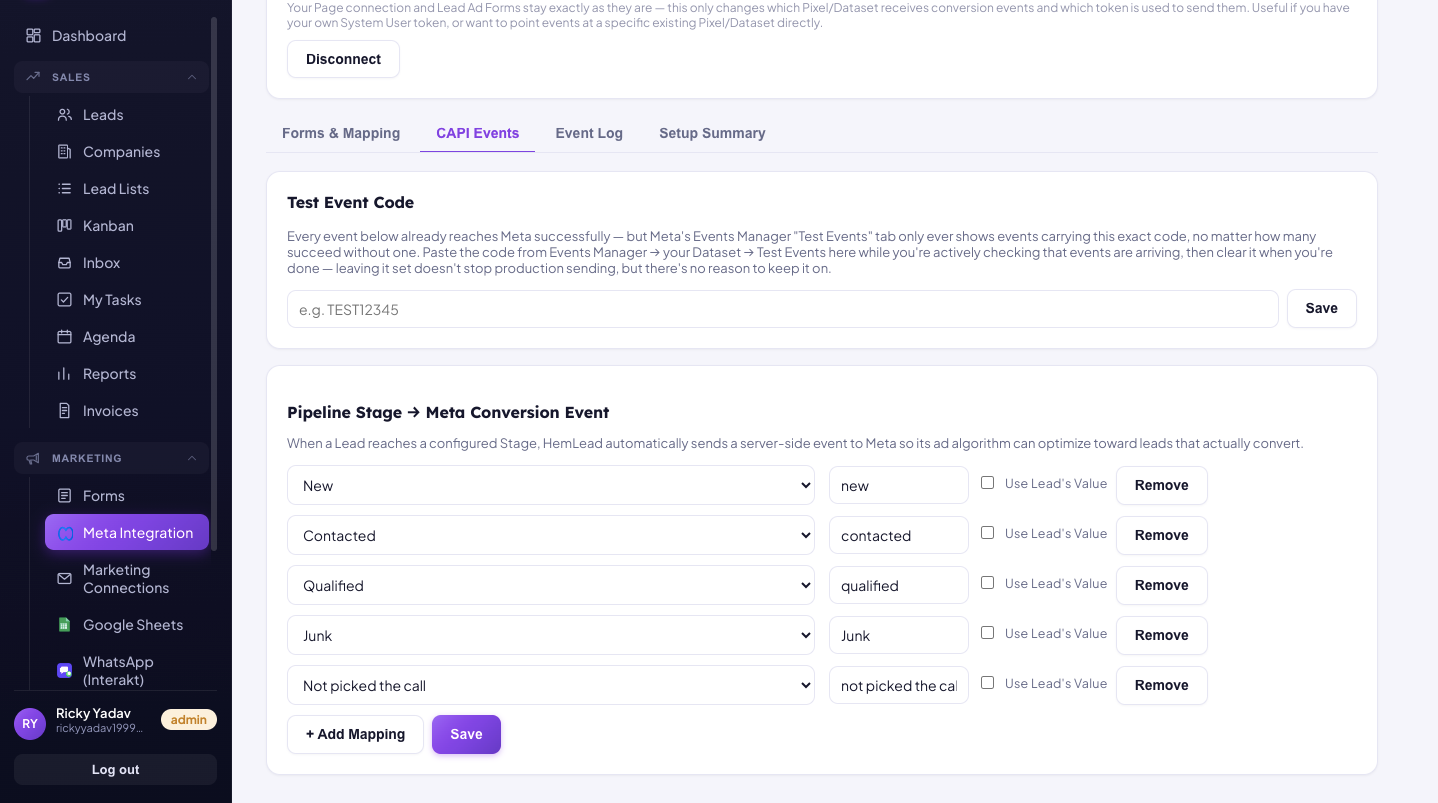
CAPI Events: choose which pipeline stage sends which event to Facebook.
9
Test the connection
Click Test Connection at the top of the page. It shows Working when Facebook accepts HemLead's test event.
What changes once you're connected
No more CSV downloads. Nobody has to export leads from Facebook or copy them by hand.
Leads arrive in seconds. Your team can call while the person still remembers your ad.
You see where each lead came from. Every lead shows its campaign, ad set and ad name, so you know which ads bring enquiries.
No duplicate leads. If the same person fills the form again, HemLead adds a note to their existing lead instead of creating a new one.
No lost leads. If Facebook is temporarily unavailable, HemLead keeps trying. Anything not yet saved is shown on the Meta Integration page with a Retry now button, so a lead is never lost silently.
Tips
Map every form before you start spending on its ads. Forms that aren't Mapped don't create leads.
Right after connecting, click Fetch Existing Leads once on each form so recent enquiries aren't left behind in Facebook.
After any change on Facebook (new Page admin, new password, new form), open Meta Integration and click Test Connection to confirm it still shows Working.
Set up the CAPI Events tab even if you only send one event, such as "Won". Facebook can only learn which leads are good if you tell it.
Common problems
"I can't connect the Page." Only the Page's admins can connect it. Ask your Page admin to click Connect with Facebook in HemLead.
Leads stopped arriving. This usually follows a Facebook password change or removed permissions. Reconnect Facebook on the Meta Integration page, then click Retry now if a "not saved yet" box appears.
A form creates no leads. The form isn't Mapped yet. Click Map Fields and finish the mapping.