When deals live in notebooks, chats and memory, some are always forgotten. This guide shows how to see every lead by stage on one board, move deals forward with drag and drop, and never lose track of a deal again.
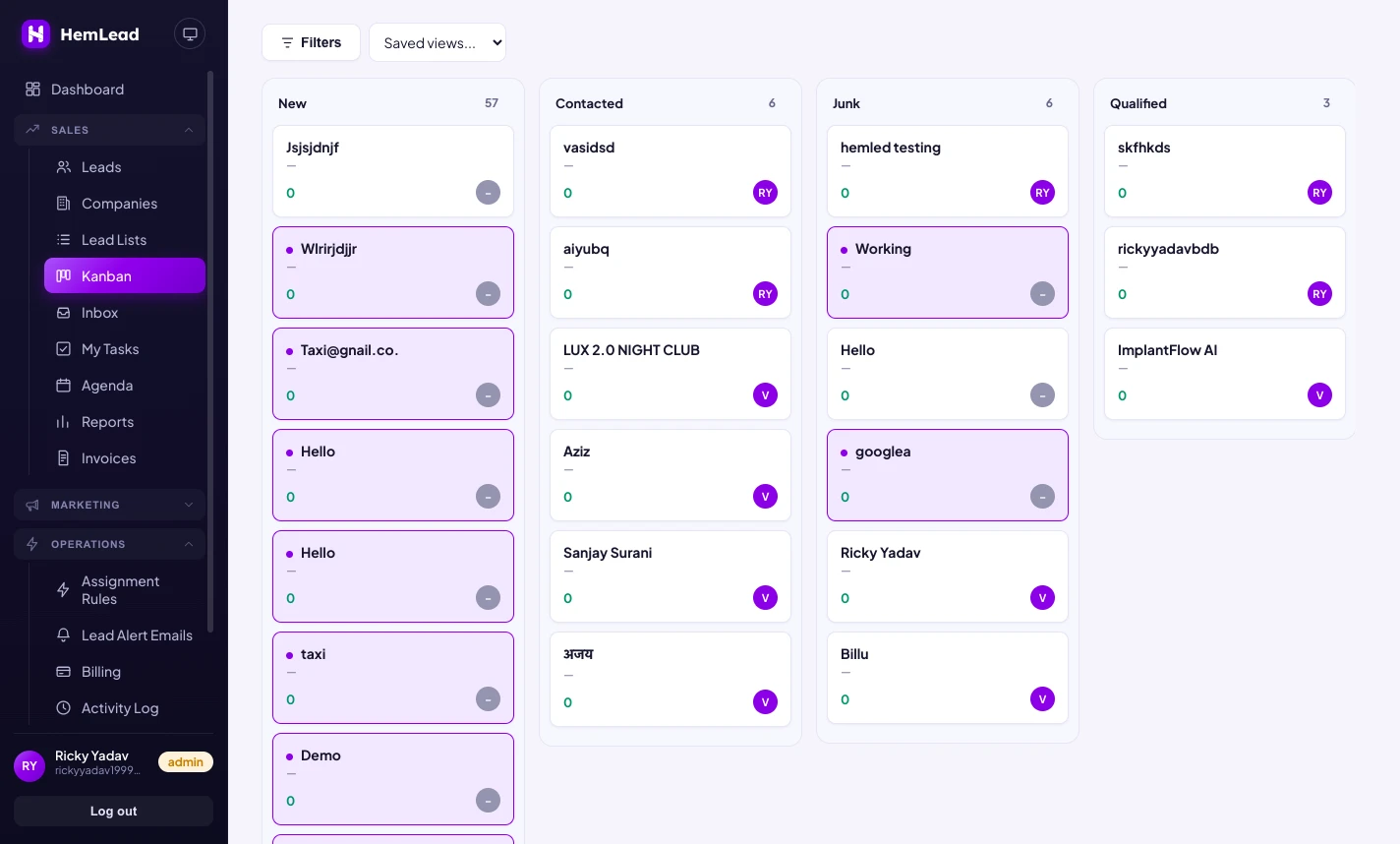
A pipeline is the path every lead takes from first enquiry to a closed deal. A Kanban board shows that path as columns — one column per stage, one card per lead — so you can see your whole sales process at a glance.
In HemLead, the board is live and shared: everyone on your team works from the same view, and every move is recorded on the lead.
How to use the Pipeline, step by step
1
Open the board
Open Kanban in the Sales menu. On a phone, it's Pipeline in the bottom bar.
2
Read the columns
Each column is a stage — for example New → Contacted → Demo → Won / Lost. The number at the top of each column shows how many leads are in that stage.
Each column is a stage, with the number of leads in it shown at the top.
3
Drag a card to move a lead
Drag a card to another column to move that lead to the new stage. The move is saved on the lead's timeline.
4
Open a lead
Click a card to open the lead: its details, notes, tasks, calls, emails and full timeline.
Screenshot: A lead opened from a card, showing details, notes, tasks, calls, emails and the timeline
5
Filter the board
Use the filter bar to narrow the board — by source, tag, owner, date and more.
Screenshot: Kanban filter bar, filtering by source, tag, owner or date
6
Let it update itself
The board updates on its own when teammates add or move leads. There's no need to refresh.
7
Customise your stages
Change the stages to match how you sell in Settings → Pipeline Stages.
Screenshot: Settings → Pipeline Stages
8
Optional: tell Facebook about real customers
If you're connected to Facebook, moving a lead into a chosen stage (such as "Won") can tell Facebook which ads bring real customers. See the Facebook Lead Ads guide, CAPI Events step.
Choosing your stages
Your stages should describe what has actually happened with a lead, not what you hope will happen. A good test: could two people on your team look at the same lead and agree which stage it's in? If not, the stage needs a clearer name.
A simple set that works for many businesses is New → Contacted → Demo → Won / Lost. You might rename Demo to fit your business — "Site visit" for real estate, "Consultation" for a clinic, "Quote sent" for a service company. Change them in Settings → Pipeline Stages.
A simple daily routine
The board works best when it's kept up to date. A few minutes a day is enough:
Start with New. Every card in the first column is someone waiting for a call. Work through it first.
Move cards as soon as something happens. After a call or a meeting, drag the card to its new stage so the board stays true.
Look for stuck cards. A lead that has sat in one column for a long time needs a follow-up, or a move to Lost.
Filter to your own leads using the filter bar, so you only see what you need to act on.
What you get
Your whole sales process at a glance — how many leads are at each stage, right now.
Stuck deals are easy to spot. A column that keeps growing tells you where leads are getting stuck.
One live board for everyone, so the team never works from an out-of-date list.
Better reports. Stage history feeds the Reports page: conversion by stage, source performance and rep performance.
Tips
Keep stages few and clear — 5 to 7 is plenty. Too many stages and cards stop moving.
Always use Won and Lost to close a deal, so your win rate and reports are accurate.
Use Lead Lists for groups of leads you want to work on together, like everyone waiting for a callback this week.
Use the filter bar to show only your own leads, or only one source, when the board gets busy.
Common problems
The board looks crowded. Use the filter bar to narrow it by owner, source, tag or date.
Your stages don't match how you sell. Change them in Settings → Pipeline Stages.
Win rate looks wrong. Check that finished deals are being moved to Won or Lost, not left in an earlier stage.